
Table of Contents
- Introduction: Full Android Settings Guide for Every User
- Network & Internet Settings
- Connected Devices Settings
- Display Settings
- Battery Settings
- Privacy Settings
- Security & Lock Screen
- Google Services Settings
- Sound & Vibration Settings
- Personalization & Wallpaper
- System and Developer Settings
- About Phone Section
- Bonus Tips & Resources
Introduction: Full Android Settings Guide for Every User
Full Android Settings Guide is your ultimate companion to mastering every important section of your Android phone. Whether you’re a beginner or a seasoned Android user, understanding these settings will help you get the most out of your device. From improving battery life and enhancing privacy to customizing appearance and connecting devices — this guide walks you through all the essential options.
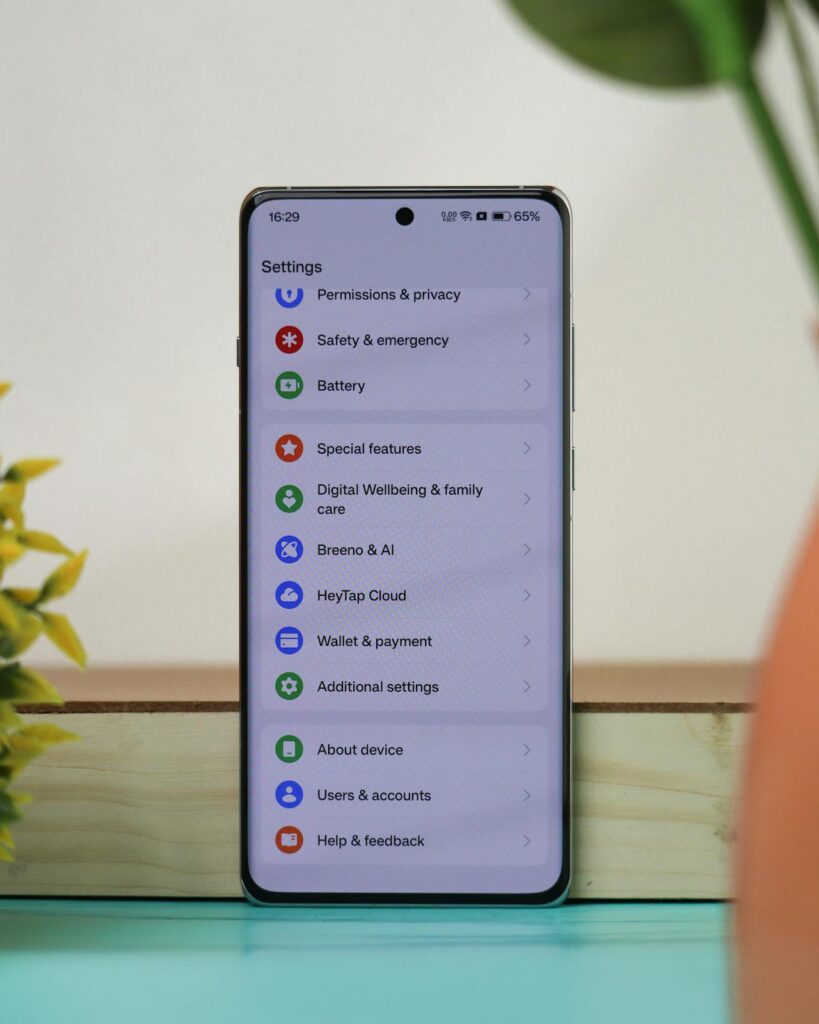
Let’s explore the 11 most important Android settings every user should know about.
1. Network & Internet
Control all your internet connections in one place:
- Wi-Fi: Connect to nearby networks and configure saved ones.
- Mobile Data: Manage SIMs, data usage, and 4G/5G settings.
- Hotspot & Tethering: Turn your phone into a personal Wi-Fi source.
- Airplane Mode: Instantly cut off all wireless signals.
Learn more about mobile connectivity
2. Connected Devices
Pair or manage:
- Bluetooth Accessories
- USB Device Preferences
- Cast to TV/Monitors
3. Display Settings
Customize your visual experience:
- Dark Mode
- Screen Timeout
- Font & Icon Size
- Brightness & Adaptive Brightness
4. Battery Optimization
To extend your battery:
- Enable Battery Saver
- Use Adaptive Battery
- Monitor Battery Usage by apps
Want advanced battery tips? Read Google’s battery guide
5. Security & Lock Screen
Your data protection starts here:
- Set up Fingerprint, Face ID, or PIN
- Enable Find My Device
- Manage App Permissions
- Use Play Protect to scan apps
6. Privacy Settings
Stay in control of your personal info:
- Adjust Permission Manager
- Control Location Access
- Turn off Usage & Diagnostic Data
7. Google Services
Your Google account powers most Android features:
- Sync your Google Account
- Manage Ads Settings
- Enable Backup & Restore
8. Sound & Vibration
Tweak what you hear:
- Set Ringtones & Notification Tones
- Enable or disable Vibration Patterns
- Customize Volume Levels independently
9. Personalization
Make your device feel like yours:
- Set new Wallpapers or Live Wallpapers
- Apply Themes, Fonts, and Icon Packs
- Adjust Home Screen Layout
10. System & Developer Settings
Power features include:
- Change Languages & Input Methods
- Set Date & Time
- Activate Gestures
- Access System Updates
- Unlock Developer Mode (tap Build Number 7 times)
11. About Phone Section
Useful when troubleshooting:
- Check Device Name & Model
- See Android Version & Security Patch
- Find IMEI and Build Number
Bonus: Pro Tips from the Full Android Settings Guide
To get the most out of this Full Android Settings Guide, here are extra pro tips to enhance your experience:
- Use the Settings search bar to quickly locate specific features without scrolling through menus.
- Turn on Digital Wellbeing to track and limit screen time, especially for social media apps.
- Set up Parental Controls for younger users to ensure a safer and more focused device environment.
- Enable Google Backup to automatically save your contacts, app data, and settings to the cloud.
- Customize your Quick Settings Panel by rearranging toggles like Wi-Fi, Bluetooth, and Battery Saver for faster access.
- Use Developer Options to speed up animations or troubleshoot advanced issues.
- Perform a Factory Reset before selling or giving away your device to protect your personal data.
These advanced tips complement the Full Android Settings Guide and help you use your phone smarter, faster, and more securely.
Conclusion
This Full Android Settings Guide gives you complete control over your Android phone. By exploring and adjusting key settings—like network, display, battery, privacy, and system—you can optimize your device for better performance, security, and usability. Whether you’re trying to extend battery life, customize your screen, or secure your data, mastering these 11 sections will help you use your phone like a pro. Don’t forget to explore features like Digital Wellbeing and Developer Options for extra control.

3 Responses